
Dokumentation
Kapitler
Læs hjælpeartikler, dokumentation og øvrig information om opsætning og anvendelse af Venjue i din forretning
Vælg en artikel fra menuen
Fremhævede artikler
Indlejr widgettet på din hjemmeside
Indlejr nemt Venjue's kontaktformular-widget på din hjemmeside, og få dybdegående forklaringer og eksempler på, hvordan det forbindes til analytics og tilpasse widgettet til mere avancerede behov
Forbind Venjue med dit bogføringsprogram
Følg vores trin-for-trin guide for at integrere Venjue med bofgøringssystemer som Billy, e-conomic, Dinero, Dynamics 365 og flere, og få en dybere forståelse for hvordan integrationen virker
Indlejr nemt Venjue's kontaktformular-widget på din hjemmeside, og få dybdegående forklaringer og eksempler på, hvordan det forbindes til analytics og tilpasse widgettet til mere avancerede behov
Introduction
The Venjue Widget is a contact form embedded on a website, that handles booking inquiries and channels them into Venjue.
The widget can be added with a few lines of code. For added convenience we created a Wordpress plugin, that handles all the technicalities.
You can see a demo of the widget to see how it works.
Embedding the widget
To add the widget to any website, or to have the full flexibility of the widget's customization options, we recommend using the manual installation option.
Manual installation
Add the following script to the website's <head> tag, to have the widget available on the site.
<script src="https://venjue.com/widget/script.js"></script>
:::warning[Caution!] Use the Venjue domain as provided. Hosting the script yourself will hinder future updates to the widget's functionality on the embedded site, which might break functionality. :::
Add the following html before the closing </body> tag, and customize the setup to suit your needs by adding data-attributes to the container.
<div id="venjue-widget-container"
    data-businessid="%%12345678%%(Provide ID of Venjue business)"
    data-langcode="%%da_DK%%(Set desired language)"
    data-accentcolor="%%#8e8df2%%(Set desired theme color)"
></div>
Consult the developer console in your browser for errors and logs from the widget.
Customization options (data-attributes)
Note: All data-attributes should be prefaced by 'data-' when added to the container, e.g.
data-businessid="42410047".
Attribute Supported values Note businessid String, the unique ID of the Venjue business's VAT (CVR no) langcode String, either ' da_DK' or 'en_DK'accentcolor String, a HEX color code, e.g. ' #8e8df2'Include the hash (#) character hidebutton Boolean, either trueorfalseIf set to true, the button that triggers the widget will be hidden and thus the functionality will be limited, and you should instead trigger the widget's opening programmatically using the appropriate methodhidebackdrop Boolean, either trueorfalsegoogletagmanagerid String, e.g. ' GTM-xxxxxxxx'The widget automatically detects an active Google Analytics setup, but in case a specific ID is needed, or the auto detection did not work, a Google Tag Manager ID can be specified
Other options, like which steps to include in the inquiry flow, which products and venues to show, availability options and custom form fields are configured in Venjue.
Wordpress plugin
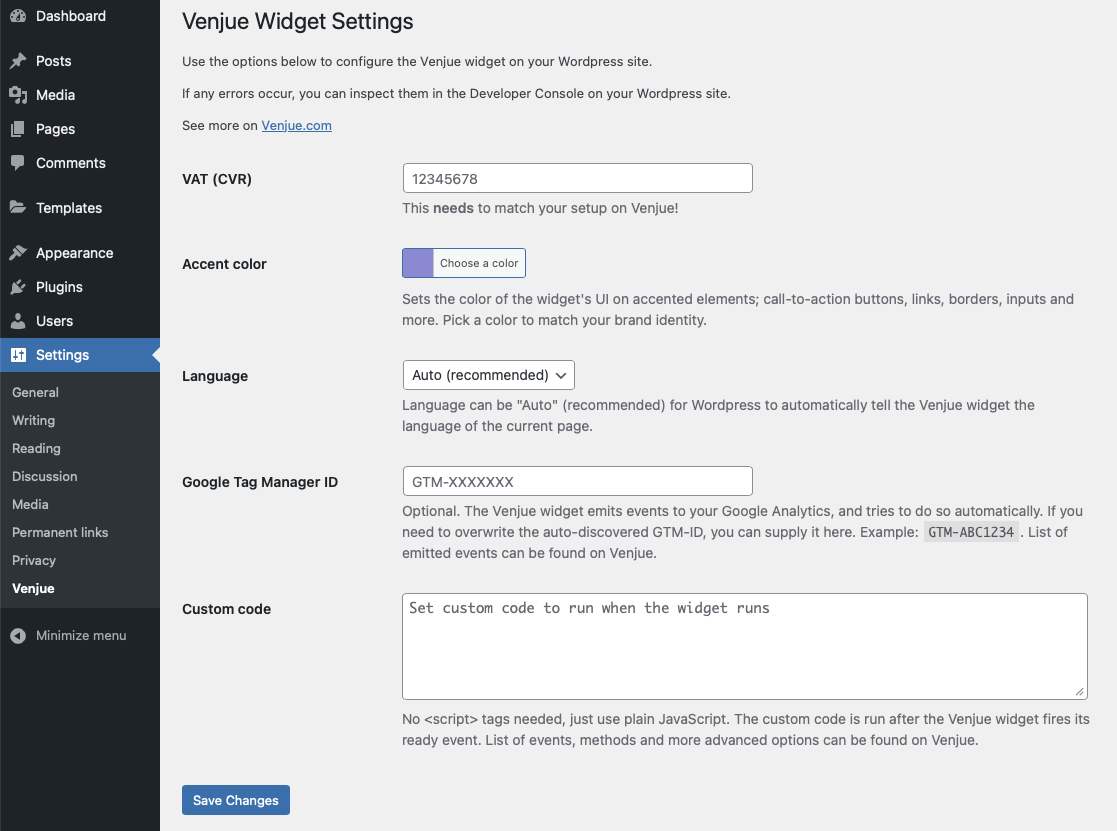
The Wordpress plugin automatically performs the same actions as the manual installation and provides a settings page to manage the customization options.
To get started, search the Wordpress plugin store for "Venjue Widget", click »install« and »activate« to add the widget to your Wordpress site.
You can also download the Wordpress plugin and upload it to your Wordpress installation manually.
When the plugin is installed and activated, there will be a submenu under your Wordpress settings, where you can configure the widget. See below screenshot.
Analytics
The widget hooks into an active Google Analytics integration and emits events for certain interactions. Measure visitor's interactions with the widget by setting up targets on these events in Google Analytics.
All activity will automatically be tracked if you use Google Tag Manager by gtag (gtag.js) or analytics.js (ga) for Google Analytics.
If the widget does not automatically detects a Google Analytics integration, or if several exist and a specific needs to be used, you can set the data-googletagmanagerid attribute instead.
:::[Inspect the Developer Console] If the widget has succesfully hooked into your Google Analytics setup, you will se messages logged in the developer console mentioning the event was emitted properly to the GTM Data Layer. :::
Events
| Event | Action |
|---|---|
| venjueWidgetReady | Fired when the widget is initialized |
| venjueWidgetShown | Fired when the widget is shown |
| venjueWidgetHidden | Fired when the widget is hidden |
| venjueWidgetSubmitted | Fired when the widget inquiry is submitted by the user |
Widget API
The Widget API provides methods to interact with the widget and events to tie other actions to the widget.
Methods
| Method | Action |
|---|---|
venjueWidget.show() |
Shows the widget |
venjueWidget.hide() |
Hides the widget |
Events
| Event | Action |
|---|---|
| venjueWidgetReady | Fired when the widget is initialized |
| venjueWidgetShown | Fired when the widget is shown |
| venjueWidgetHidden | Fired when the widget is hidden |
| venjueWidgetSubmitted | Fired when the widget inquiry is submitted by the user |
Code example
The following is a code example to open the widget whenever clicking on a link with the class of 'openVenjueWidget':
document.addEventListener("venjueWidgetReady", function() {
    document.querySelector(".openVenjueWidget").addEventListener("click", function(event) {
        event.preventDefault();
        venjueWidget.show();
    });
});
Følg vores trin-for-trin guide for at integrere Venjue med bofgøringssystemer som Billy, e-conomic, Dinero, Dynamics 365 og flere, og få en dybere forståelse for hvordan integrationen virker
Introduction
Venjue can connect to your bookkeeping and invoicing system, so that financial transactions and invoicing automatically gets done.
On Venjue, you will be able to use debtors for bookings, keep track of payments and their invoice draft counterparts, customer payments will automatically appear on your journal vouchers on the debtor's account, and once you're ready to send the invoice, a single button press will transfer the booking for final invoicing and bookkeeping.
We support several integrations for bookkeeping, including:
- Visma e-conomic
- Billy by Shine (previously "Billy's Billing" and "Billy by Ageras")
- Dinero
- Microsoft Dynamics 365
Setting up the integration
To begin connecting Venjue with your bookkeeping system, please follow the below steps:
Step 1
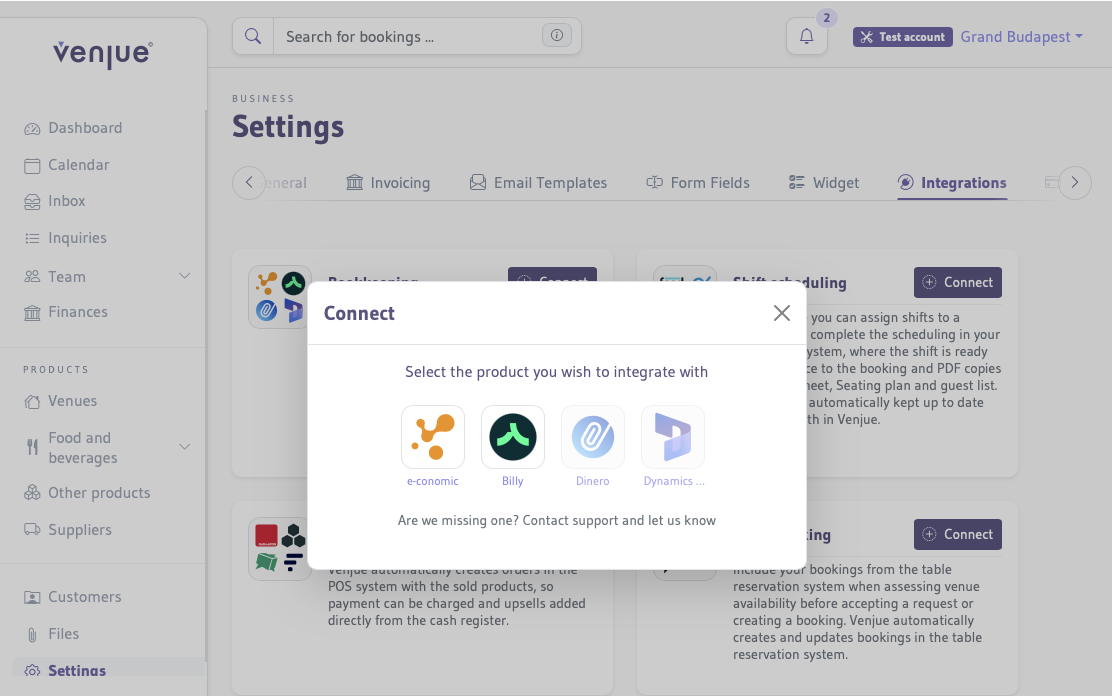
Login to Venjue and go to Settings → Integrations → Bookkeeping and click on »Connect«.
Select your bookkeeping system from the list.
Note: selections available in below screenshot can change as we add more systems.
Step 2
Grant permission for Venjue to communicate with your bookkeeping system.
:::[Heads up!] In this example we're connecting with e-conomic, so the page you see might be a bit different. For some integrations you wil be presented by semi-manual instructions to follow to grant access. :::
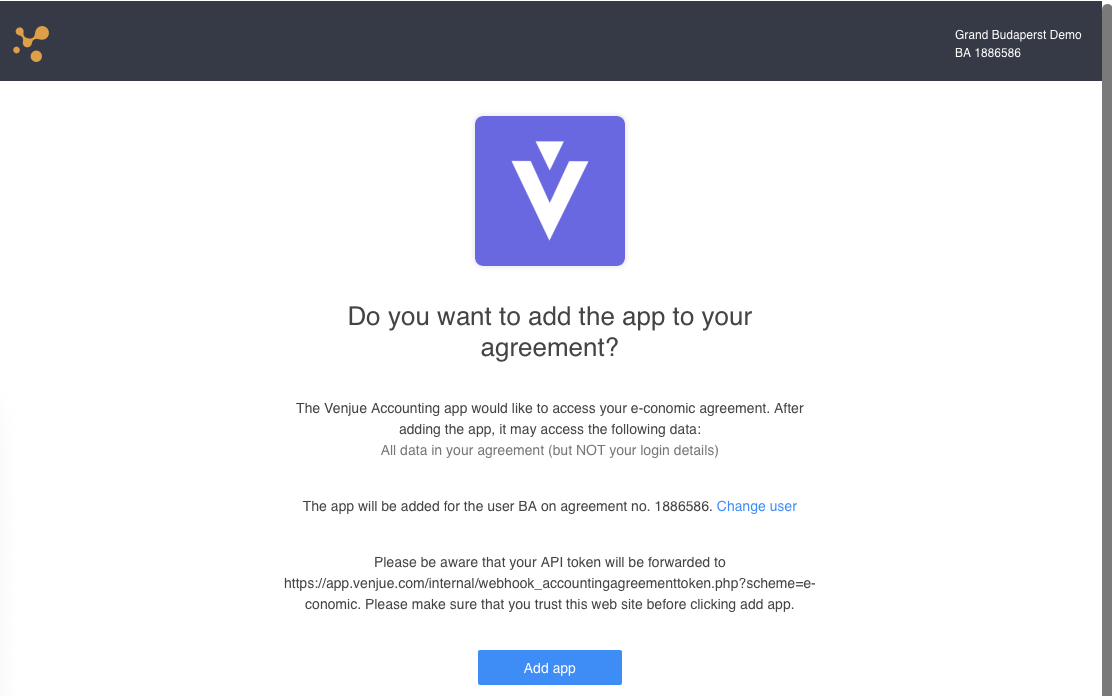
Once done, you will be returned to Venjue to complete the setup.
Step 3
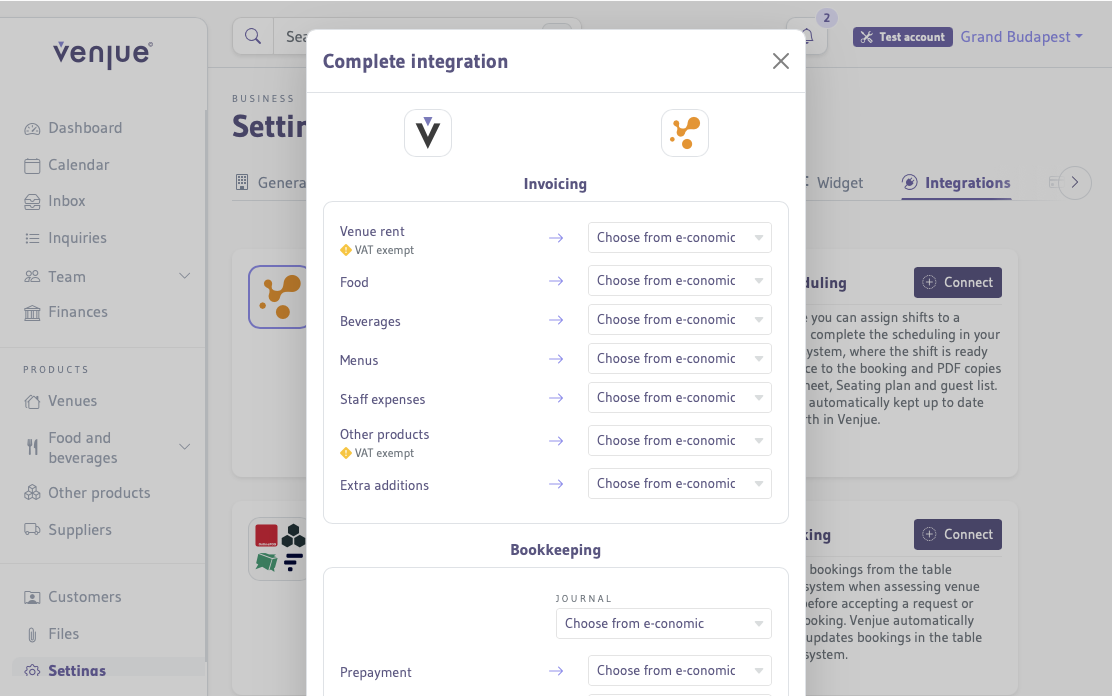
After you return from granting access, you will be asked to complete the integration by configuring how Venjue should interact with your bookkeeping system.
The steps needed are presented to you and differs from integration to integration.
Select the different product categories Venjue should populate on invoice drafts, and other settings for this specific bookkeeping system.
:::warning[Caution] If you do not properly configure the integration, Venjue will not be able to communicate with your bookkeeping system. :::
Ensure that you:
- Select a journal from your bookkeeping system that accepts both customer payments and finance vouchers to use for entries,
- select a balance sheet for prepayments without VAT for deposits,
- select a profit and loss account (VAT code I25) for potential transaction fees.
How bookkeeping and invoicing work
Debtors
When a booking gets confirmed by the customer, Venjue will automatically create a debtor (or re-use an existing one) with the customer's data.
When managing a booking on Venjue, you can prefill the debtor to use.
Bookkeeping
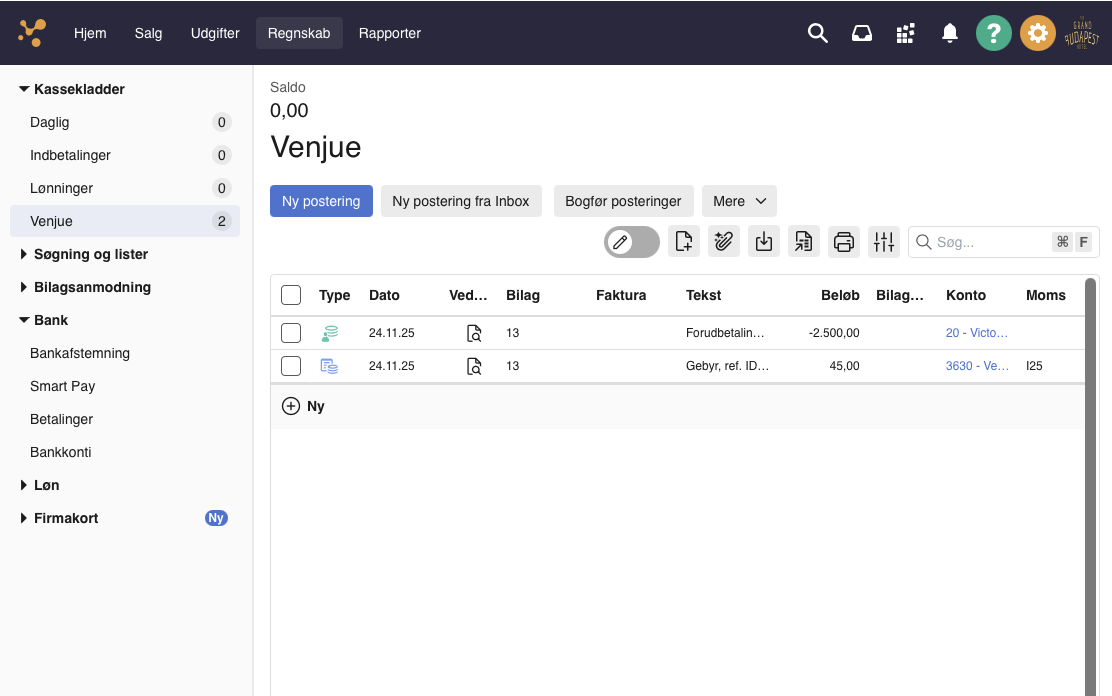
When a booking gets confirmed by the customer, Venjue will create a journal entry with the paid amount tied to the debtor account for the customer.
If there is a fee tied to the transaction, it will also be created along with an attached fee receipt.
Invoicing
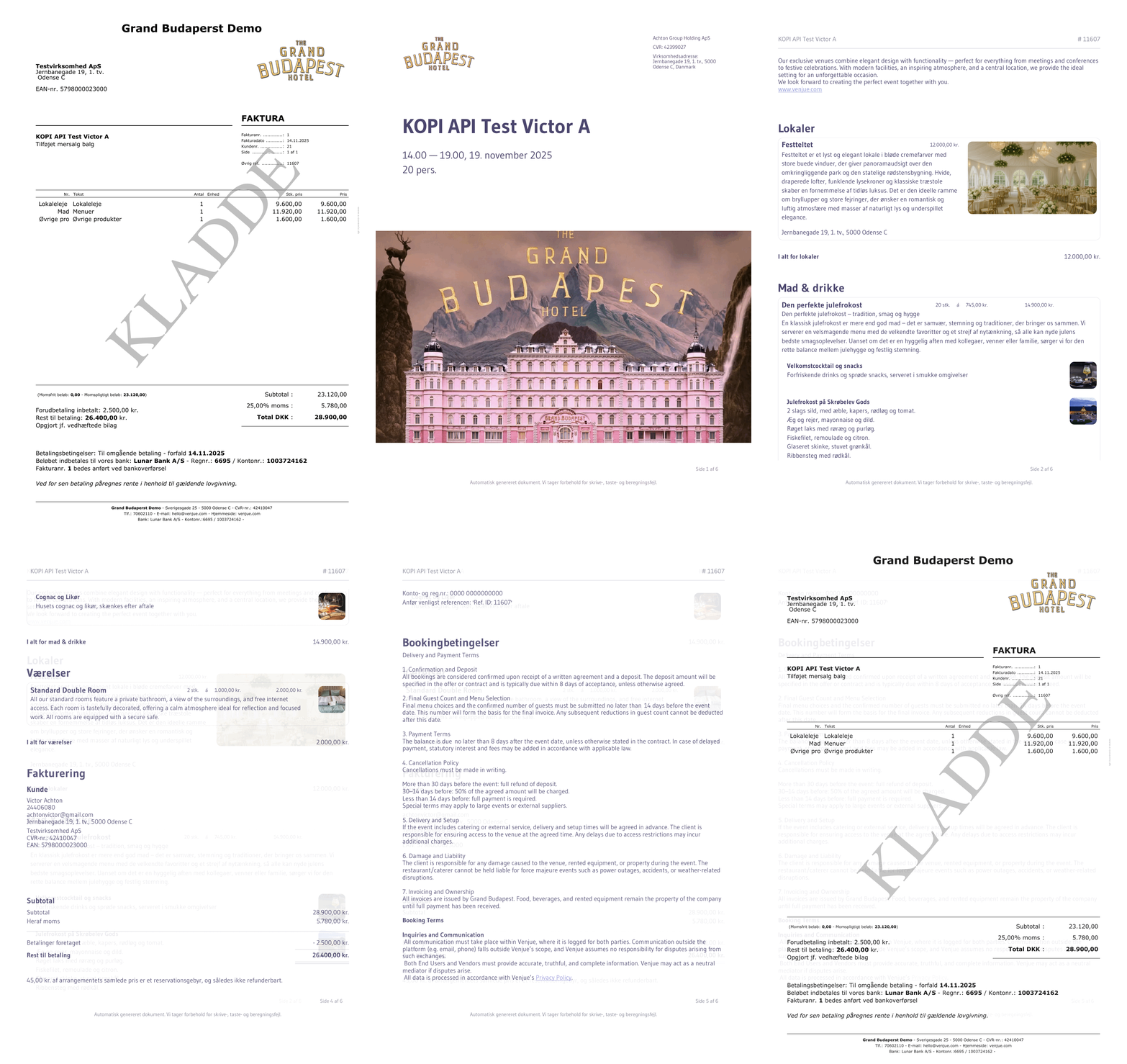
When desired, you can click a single button and Venjue will create a new draft invoice in your bookkeeping system ready for approval.
The draft invoice will be tied to the debtor, have the customer's information, the invoice lines from the booking, a total price deducted the potential prepayment and Venjue's booking order confirmation attached.
Below is a preview of the generated invoice PDF from e-conomic.
Fandt du ikke det, du ledte efter?
Kontakt os, for at få yderligere hjælp, foreslå ændringer eller tilføjelser, eller hvis du har flere spørgsmål